Organizer guide
Everything you need to run your party with Joya, step by step.
Joya in one minute
Your guests scan a QR code when they arrive. Their phone takes a break during the party, and they get it back when they leave. You run everything from the app: your party, your team, your lists and your tickets.
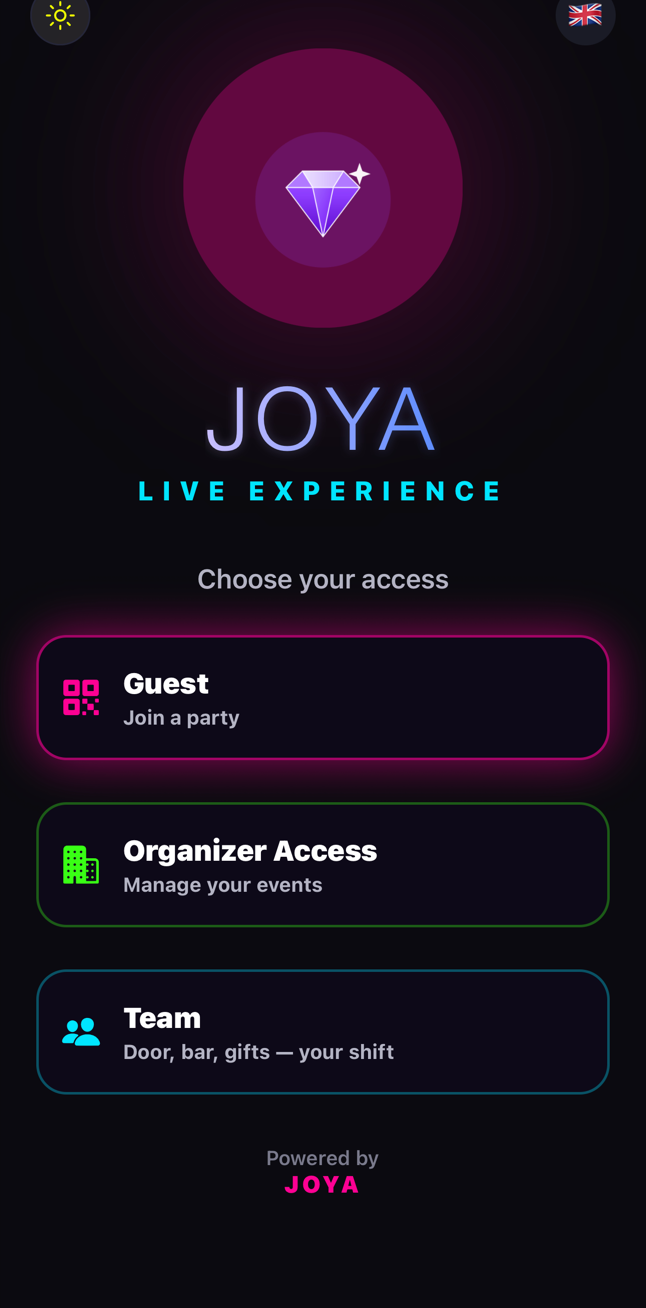
- Open Joya and choose "Organizer".
- Sign in: your dashboard opens.
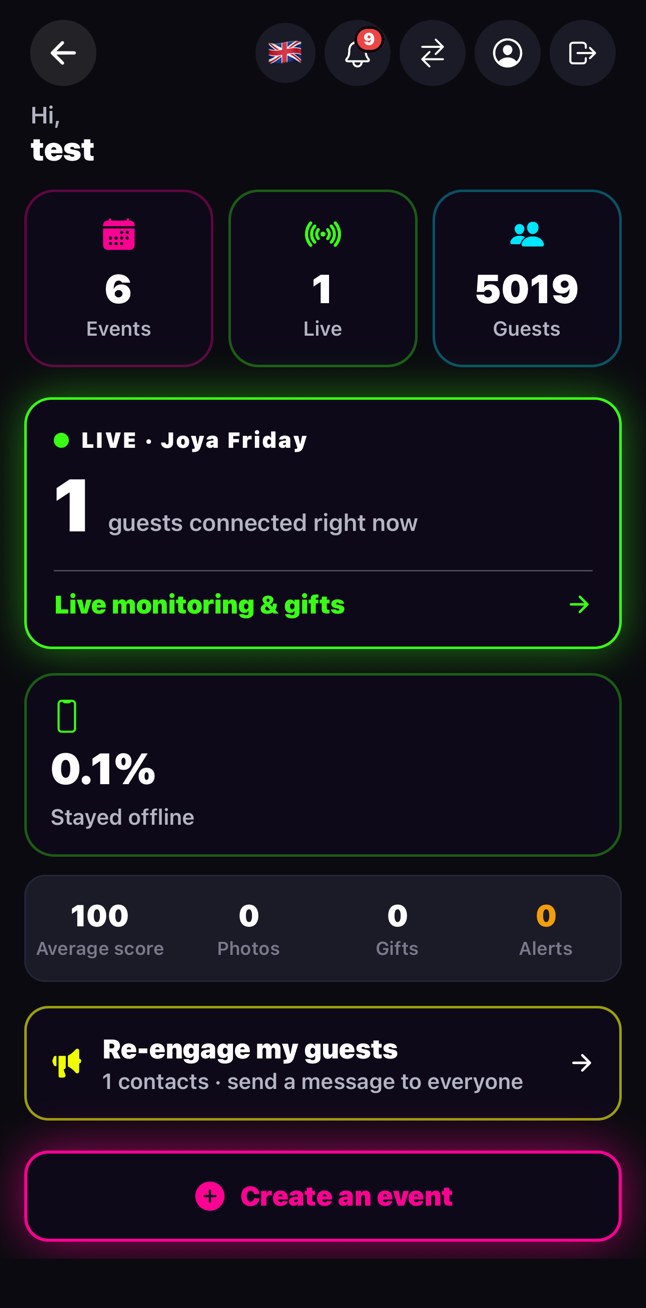
Your dashboard
Everything sits in tiles. The most useful on the night:
- "Live dashboard": who is in, in real time.
- "Guest lists": your lists, your promoters, the door view.
- "Sell tickets": your ticketing, no fees for your customers.
- "My team": your door staff, hosts, promoters…
- At the bottom, "My events": all your parties.
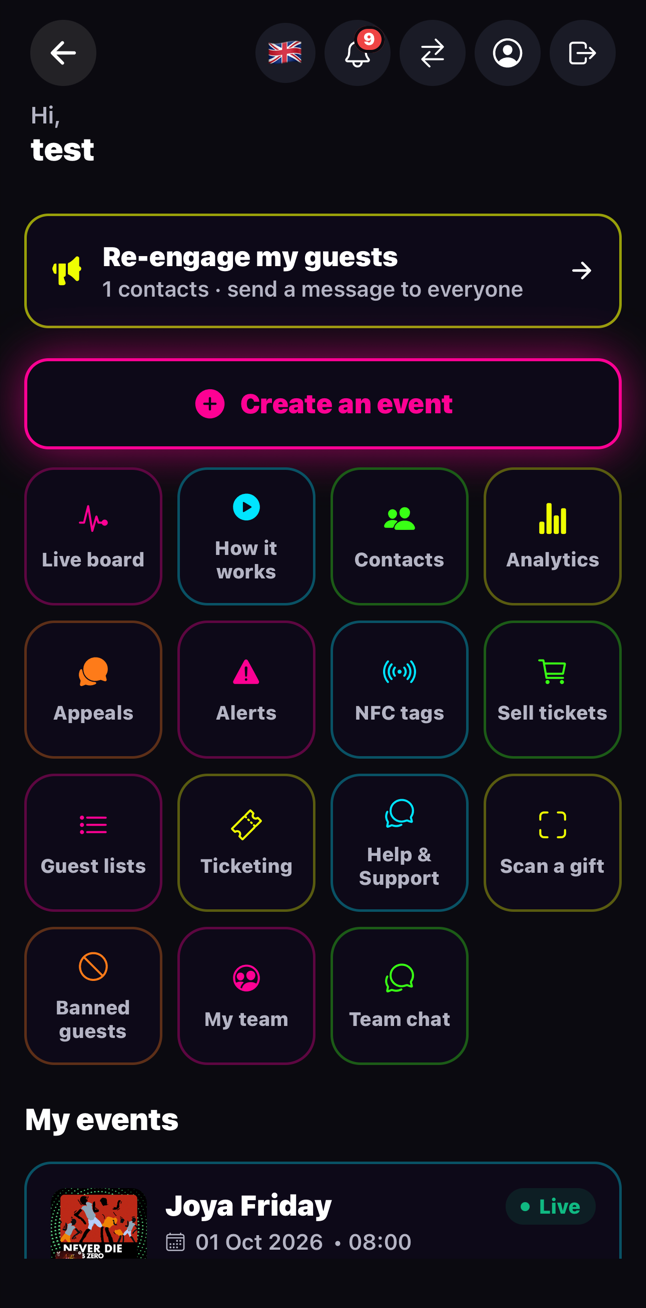
Create your party
"Create an event": a name, a date, a time, a duration. That's it.
- Tap "Create an event" on the dashboard.
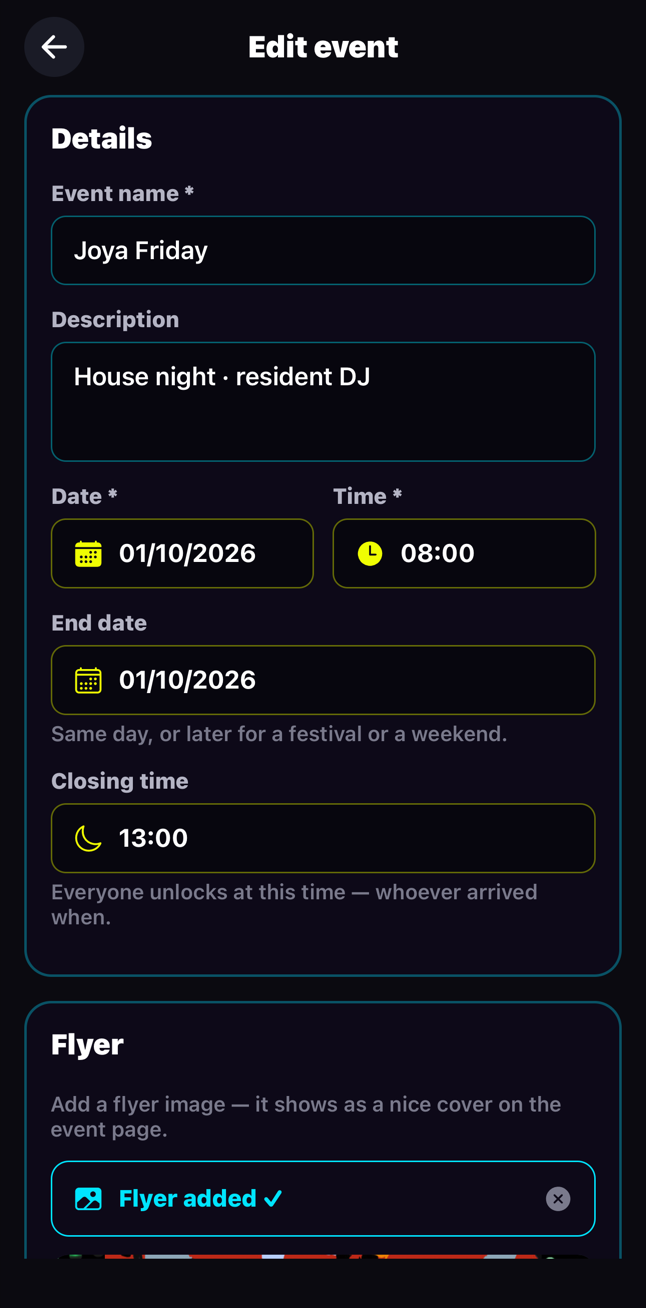
- Fill in the name, the date and the start time.
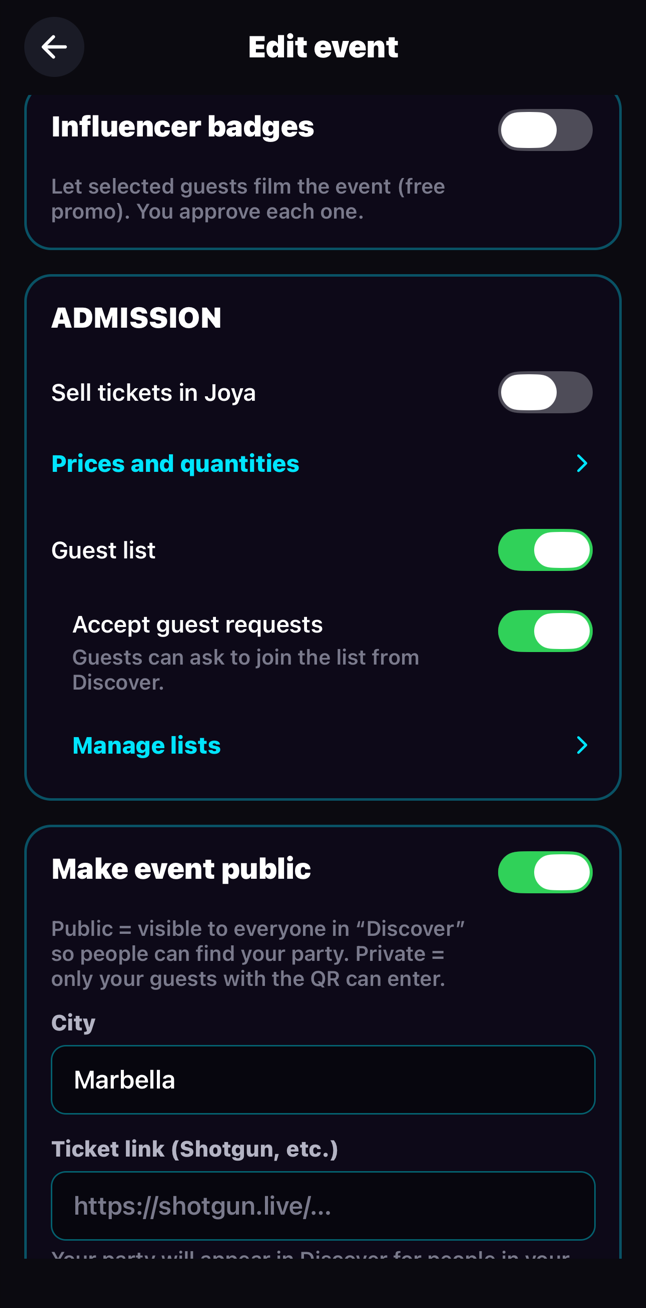
- In "Admission", switch on what you need: sell tickets, open the guest list, accept guest requests.
- Save. You can change everything later with "Edit event".
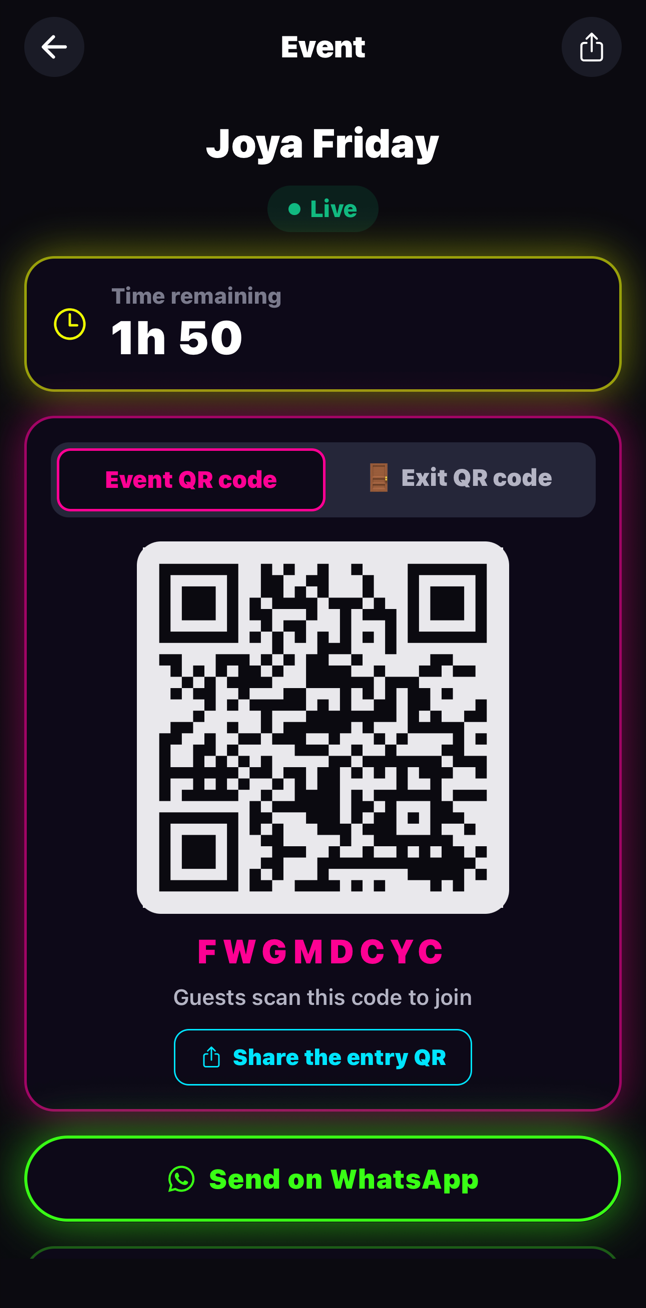
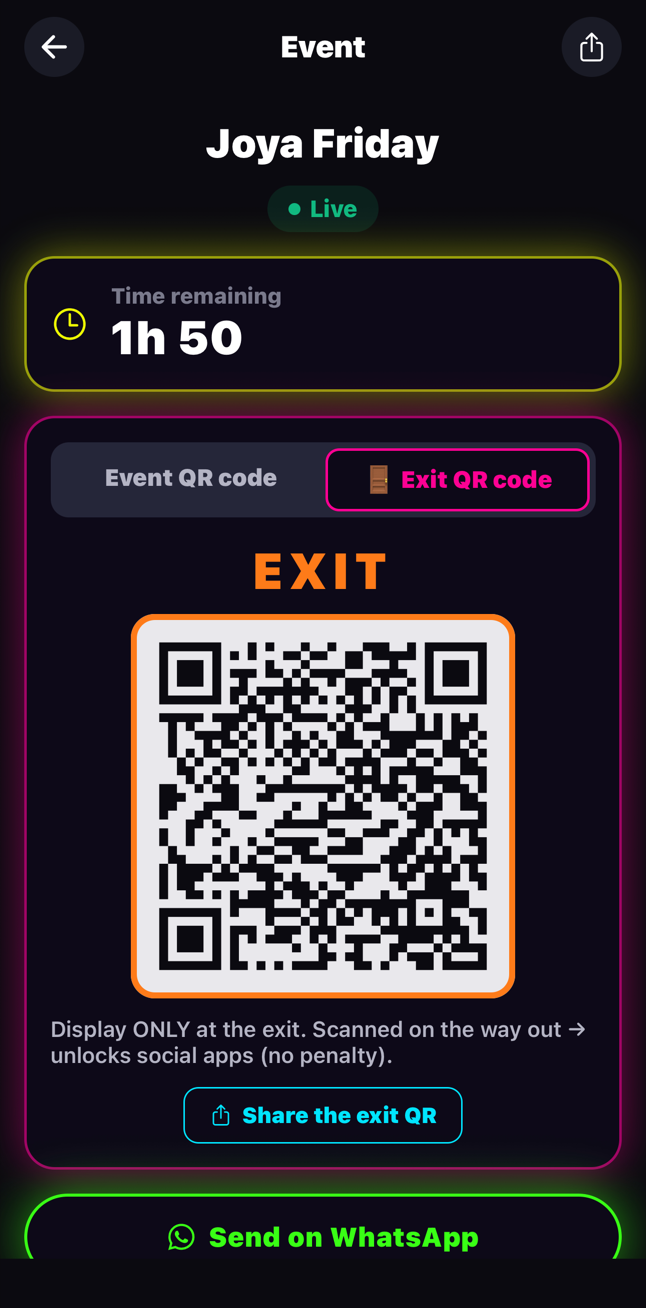
On the night: the two QR codes
Each party has two QR codes. Show the right one in the right place.
- ENTRY QR: at the door. Guests scan it with Joya and walk in.
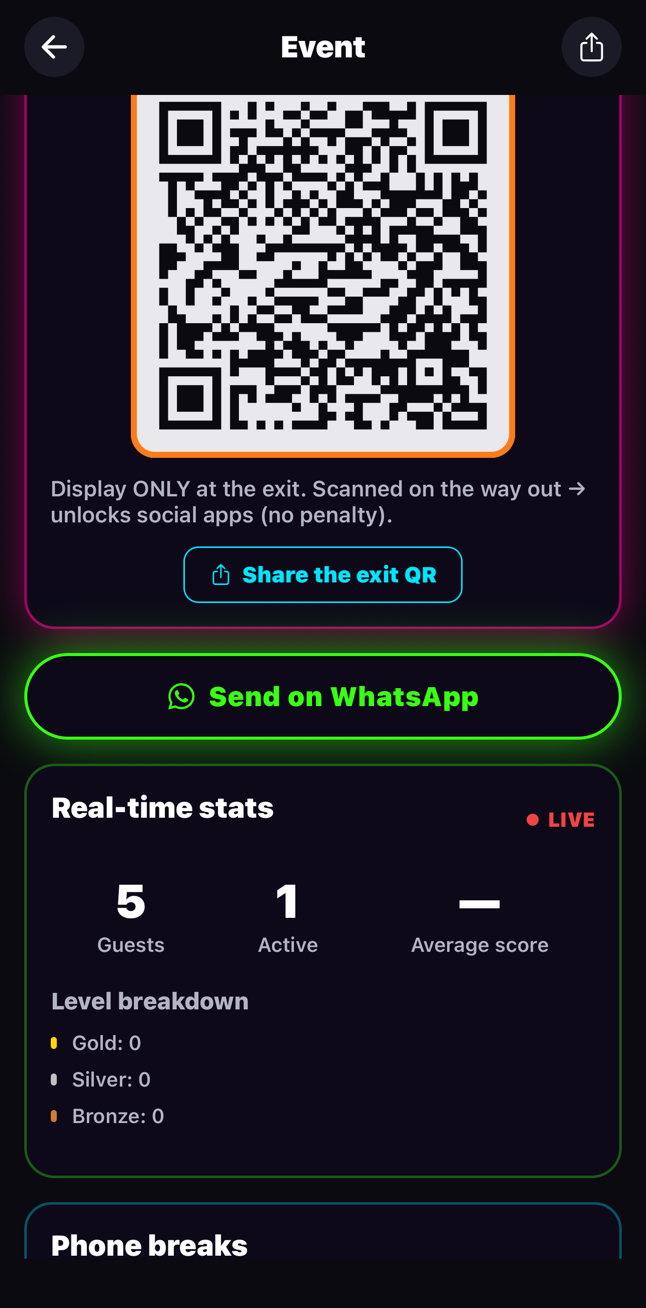
- EXIT QR (orange): at the exit only. Guests scan it to get their phone back.
- Tap a QR to show it full screen, or share it to print it.
Your team
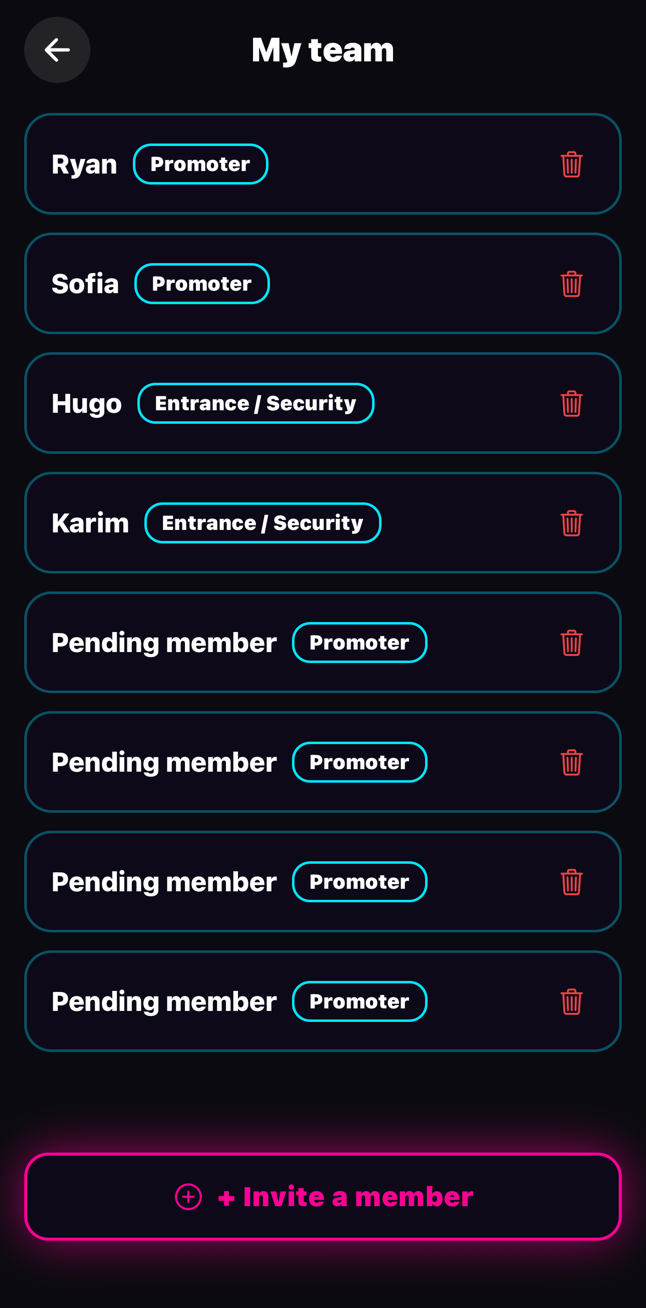
Door staff, host, promoter, bartender… Everyone has their own post in Joya.
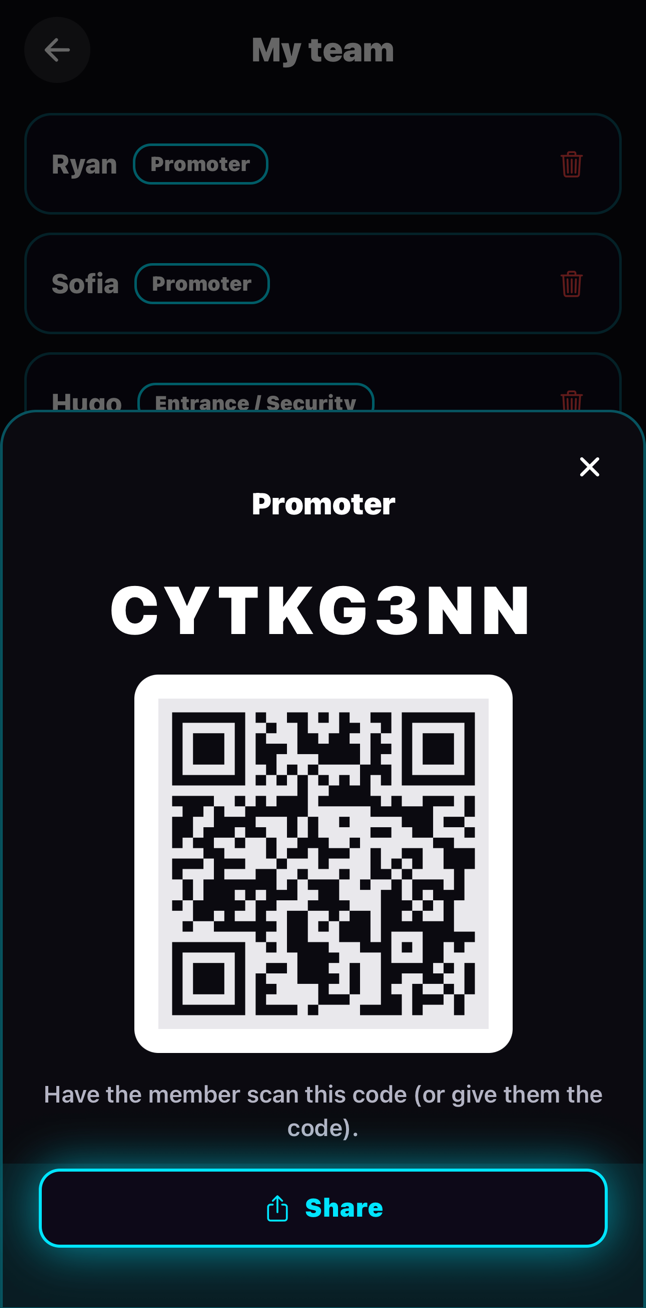
- "My team" → "Invite a member".
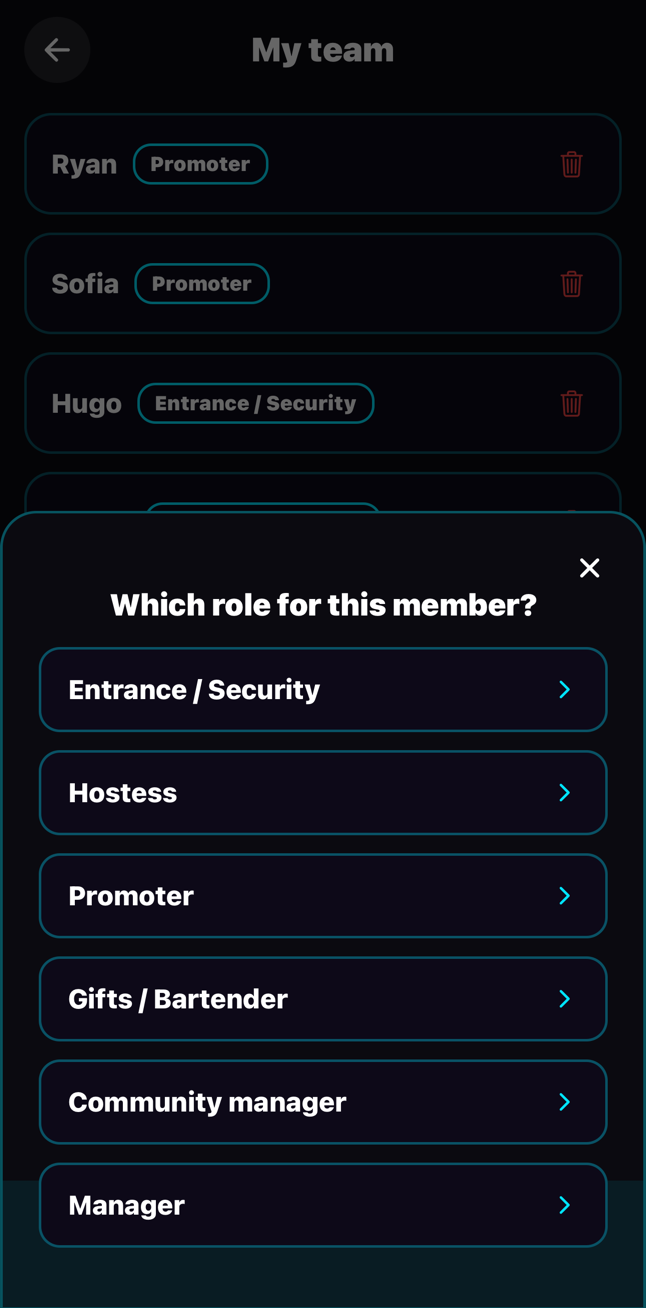
- Choose the role: Entry / Door, Host, Promoter…
- Tap "Share" and send the link on WhatsApp. Or let them scan the QR.
- They create their account once. After that they tap "Team" and land straight on their post.
Guest lists: create a list
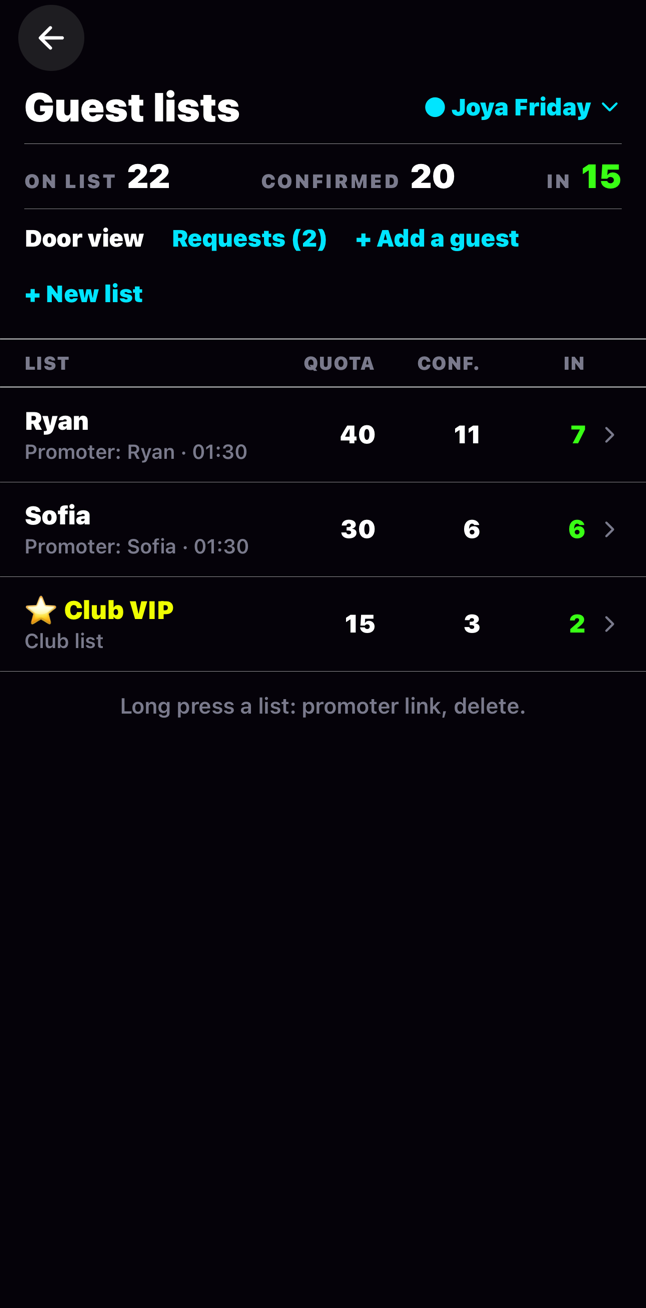
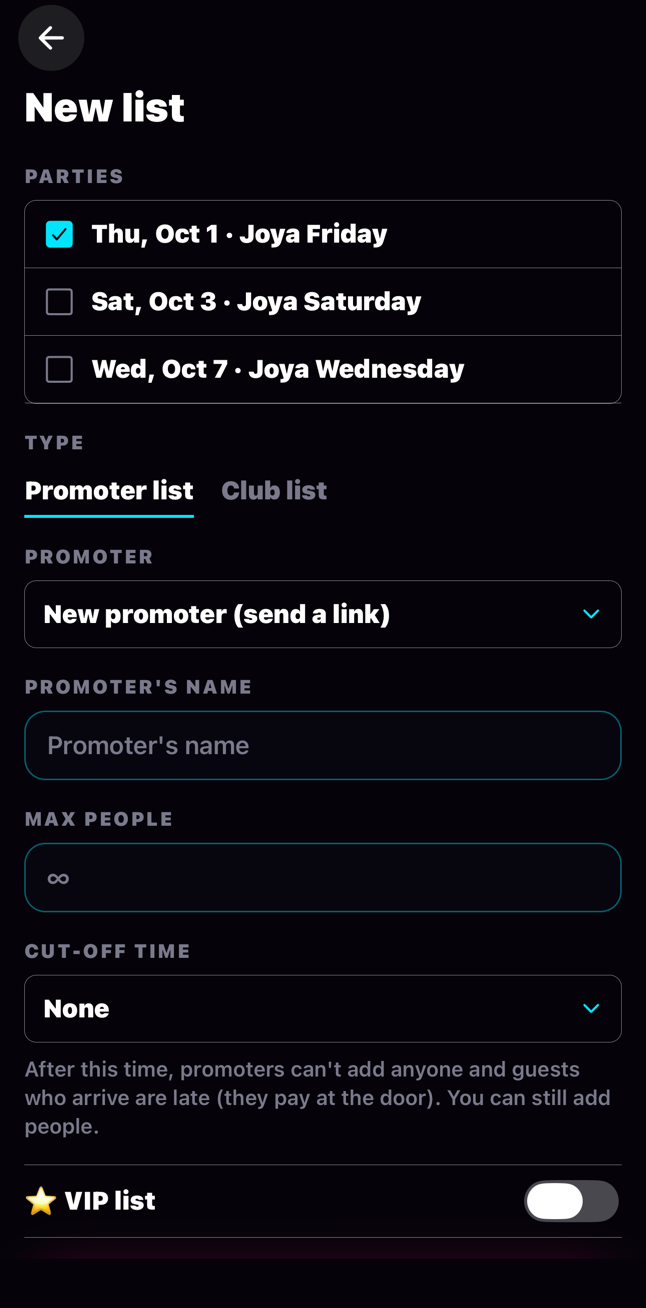
One list for your club, one list per promoter. You set the number of spots and the time limit.
- "Guest lists" → "+ New list".
- Parties: tick one or more parties. The same list is created on each one: handy to give all your parties of the week to the same promoter.
- Promoter list: pick them from your team, or send them a link.
- Max people: how many they can invite (friends included).
- Time limit: after that time the promoter can't add anyone, and late guests pay at the door.
- VIP list: the guest is flagged VIP at the door.
Add a guest
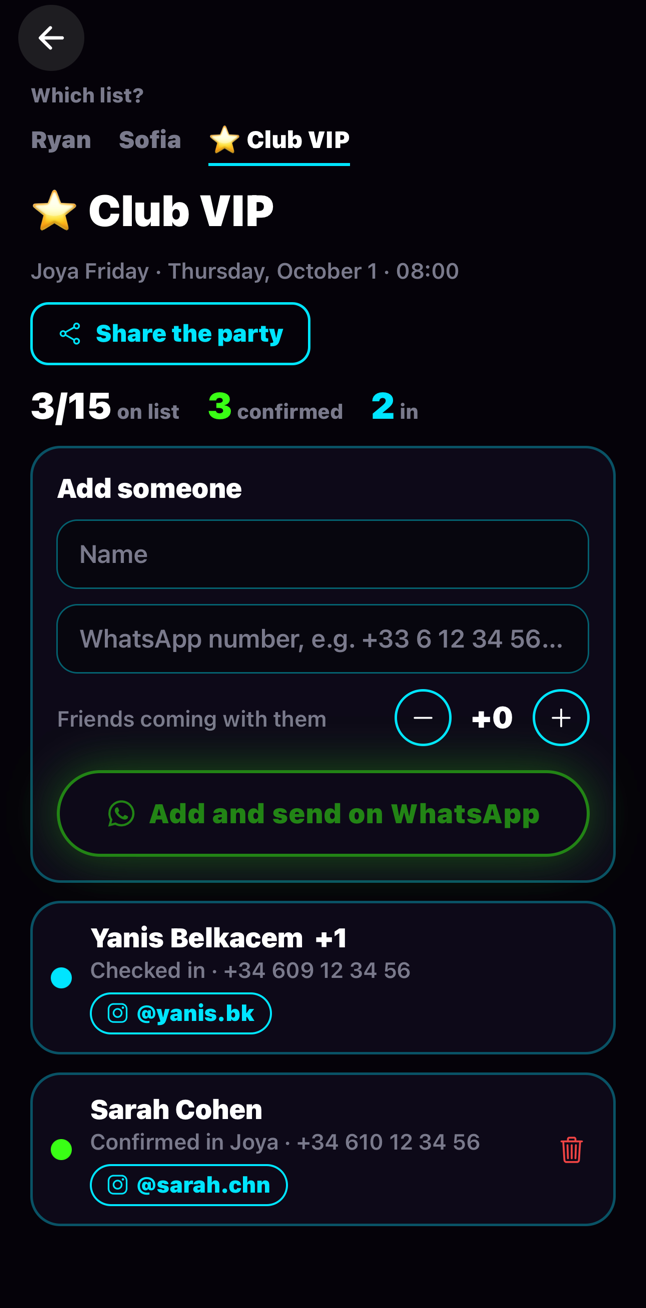
You or your promoter, same gesture. You can add at any time.
- "+ Add a guest" → choose the list.
- Name, phone, number of friends.
- "Add and send on WhatsApp": the message goes from your own WhatsApp, with the link to confirm.
- Grey dot: not confirmed yet. Green dot: confirmed. Blue dot: checked in.
What your guest sees
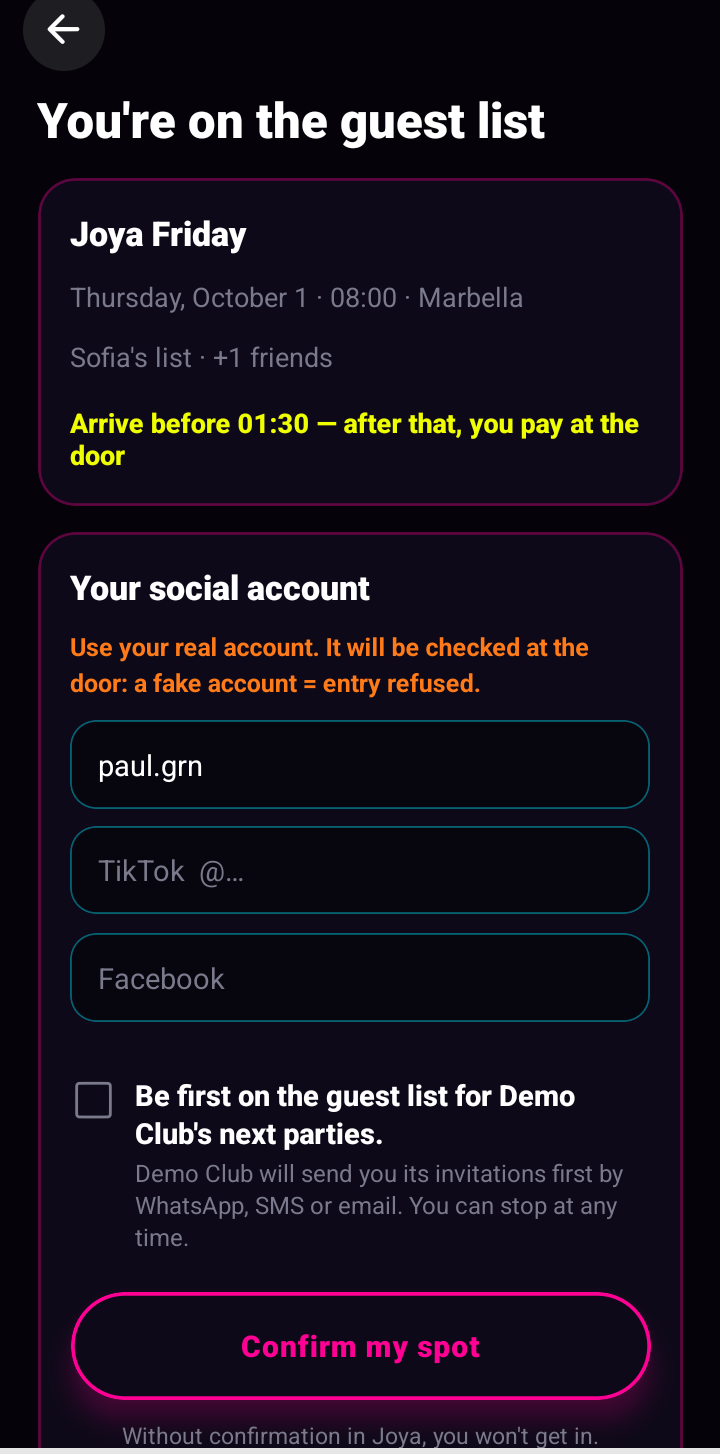
A spot is only held once it's confirmed in Joya. No fake names, no wasted spots.
- They tap the link received on WhatsApp: Joya opens.
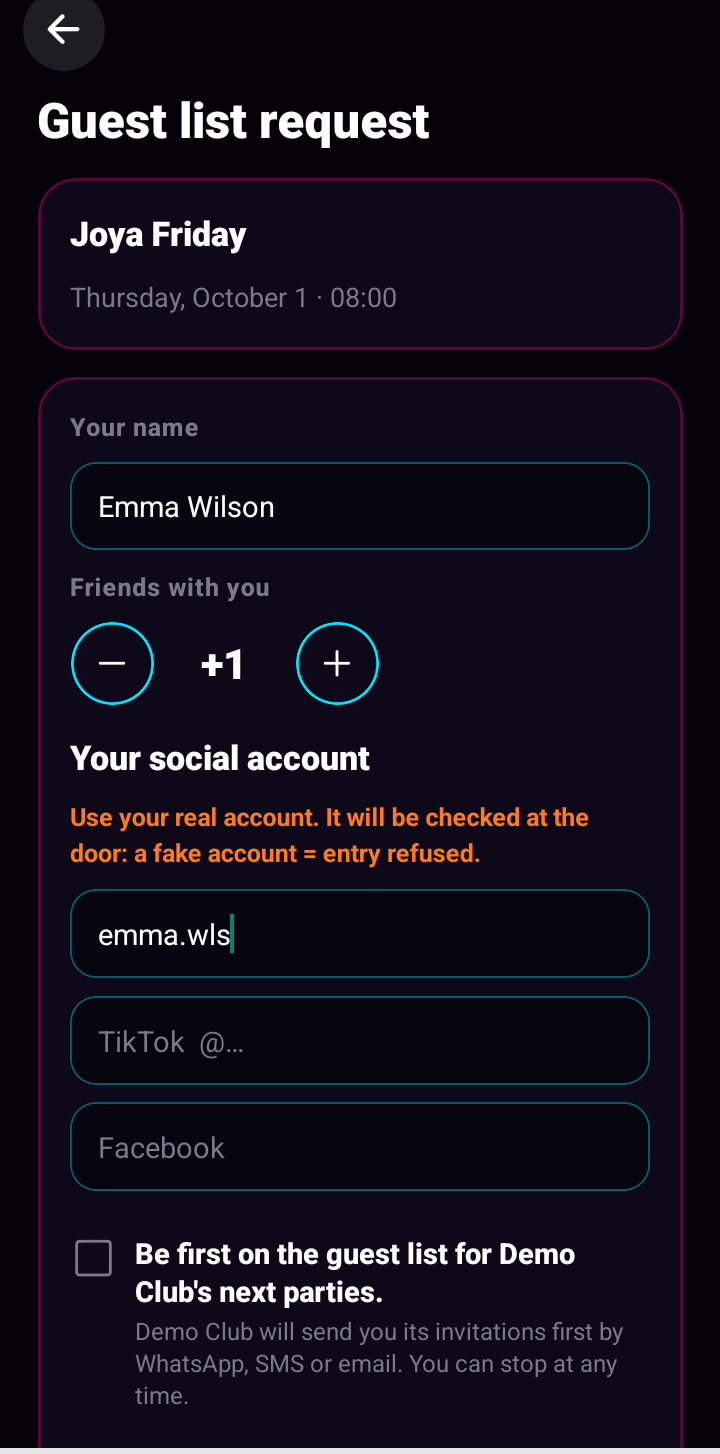
- They add their Instagram, TikTok or Facebook. It's checked at the door.
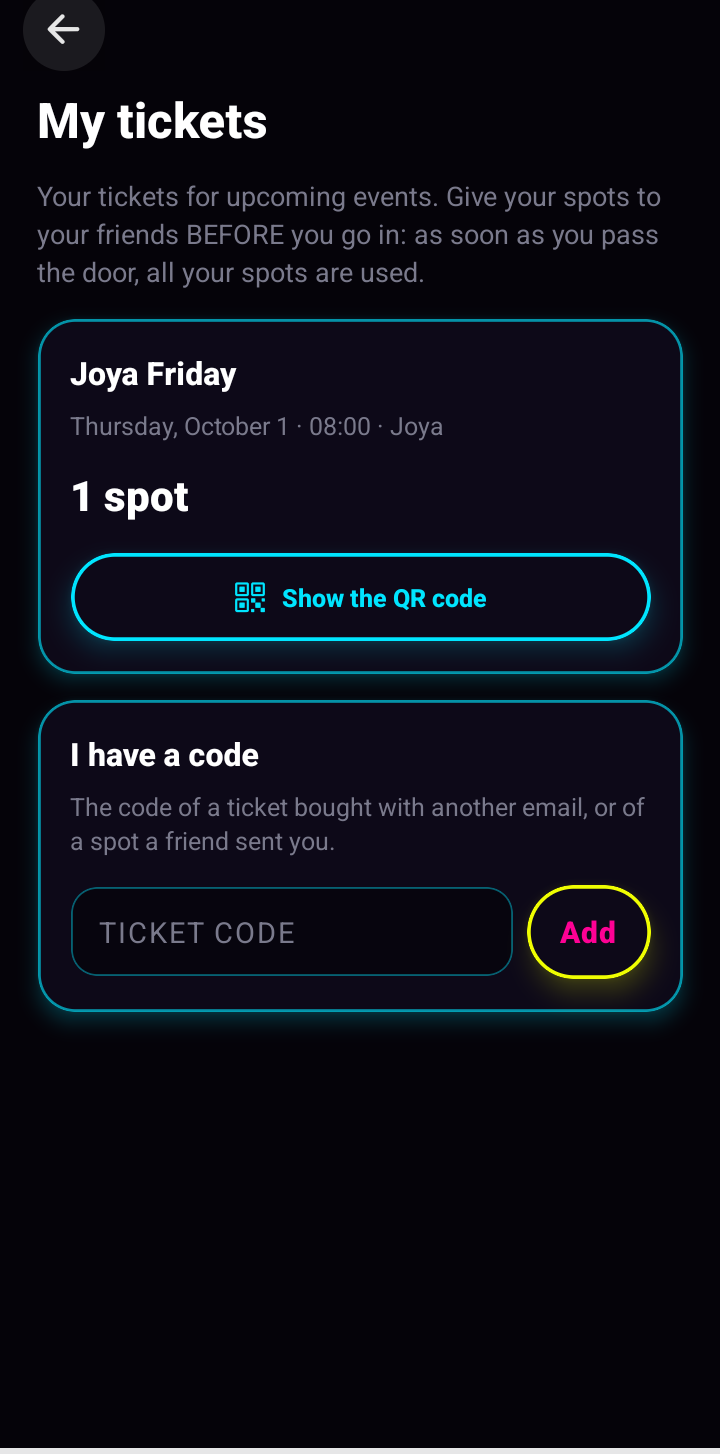
- "Confirm my spot": done. Their friends' spots are in "My tickets", to send to each friend.
Requests from Discover
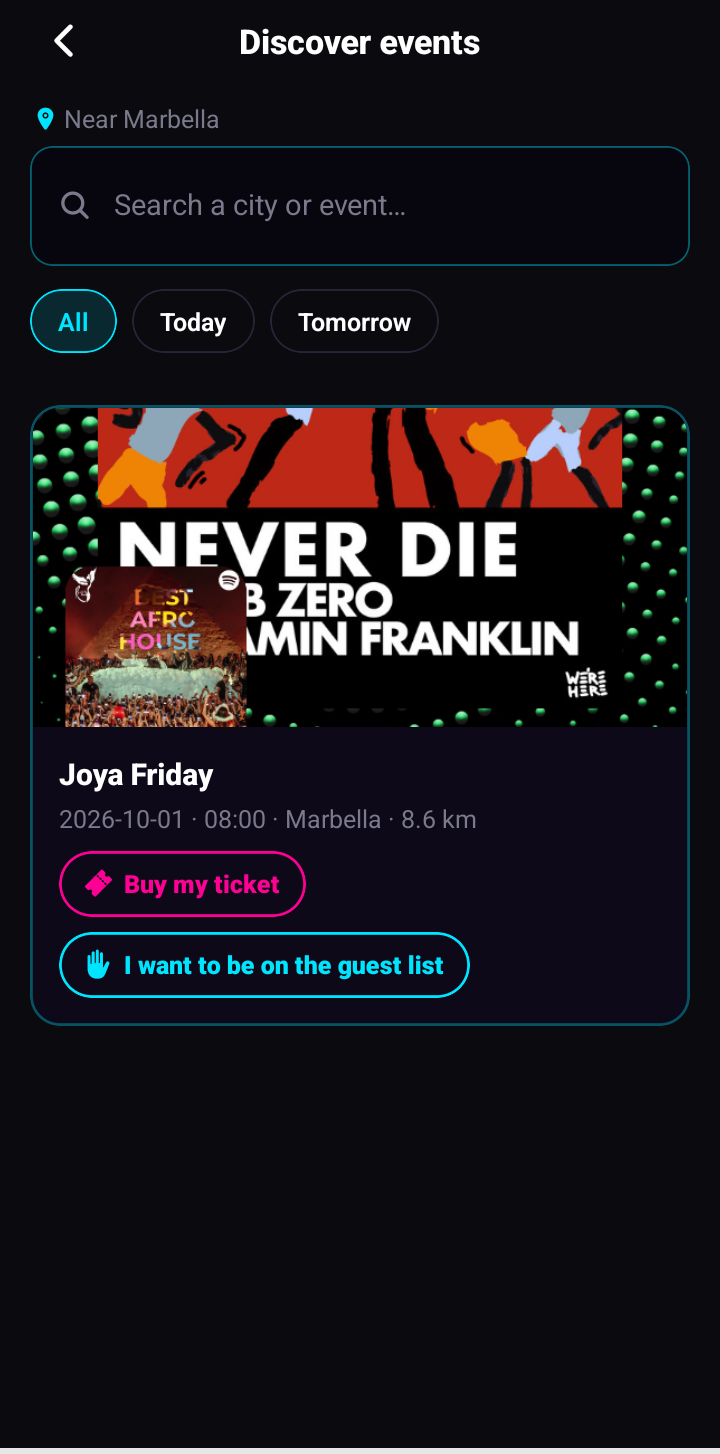
Your public parties show up in "Discover". A guest can ask for a spot on your guest list.
- They tap "I want to be on the guest list" and send the request.
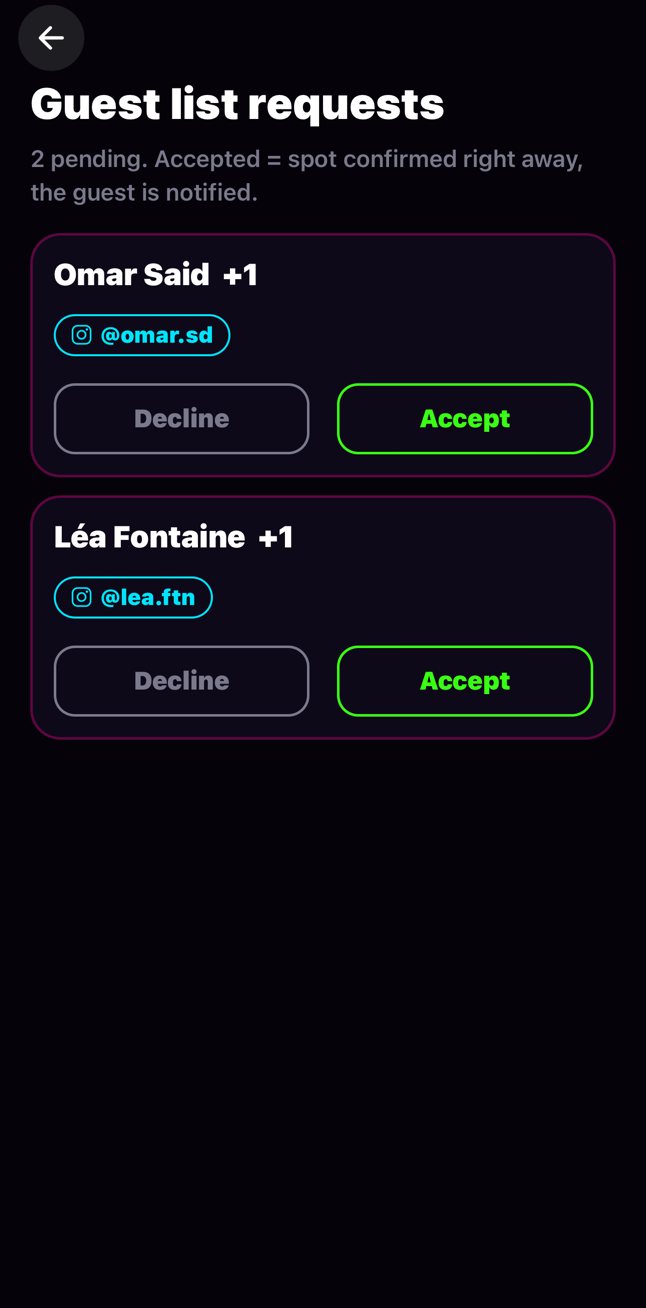
- You get a notification. "Guest lists" → "Requests".
- Accept: their spot is confirmed straight away. Decline: they are told too.
At the door
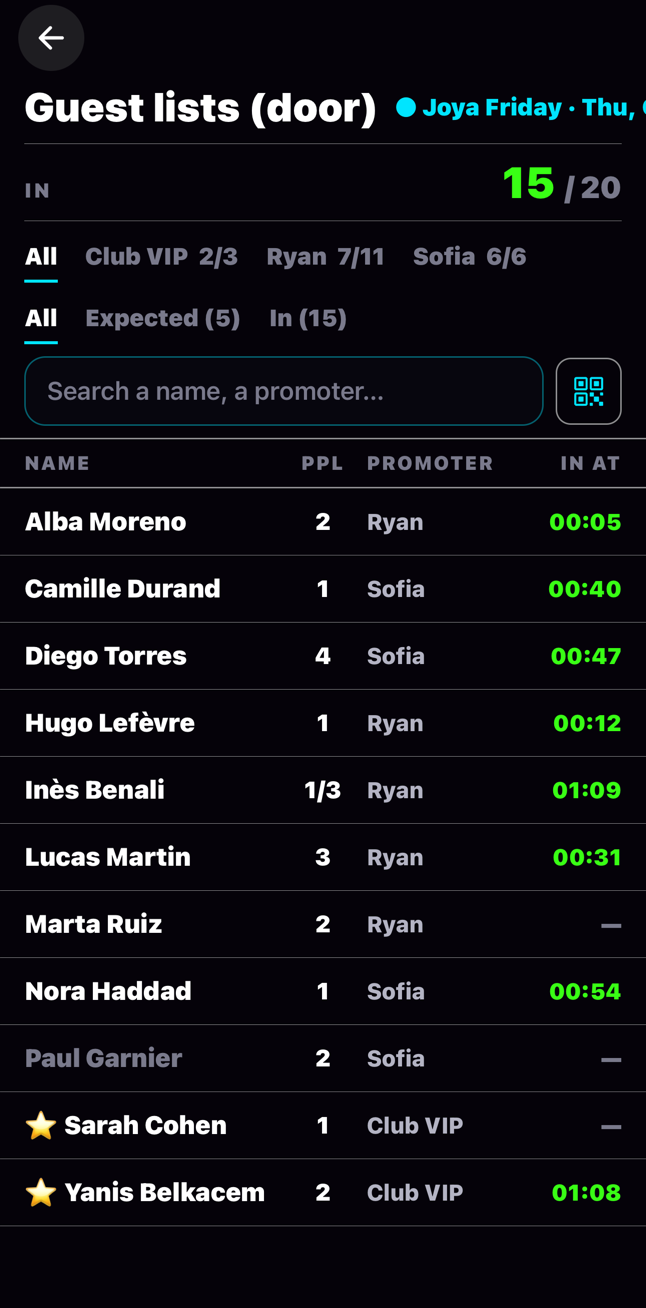
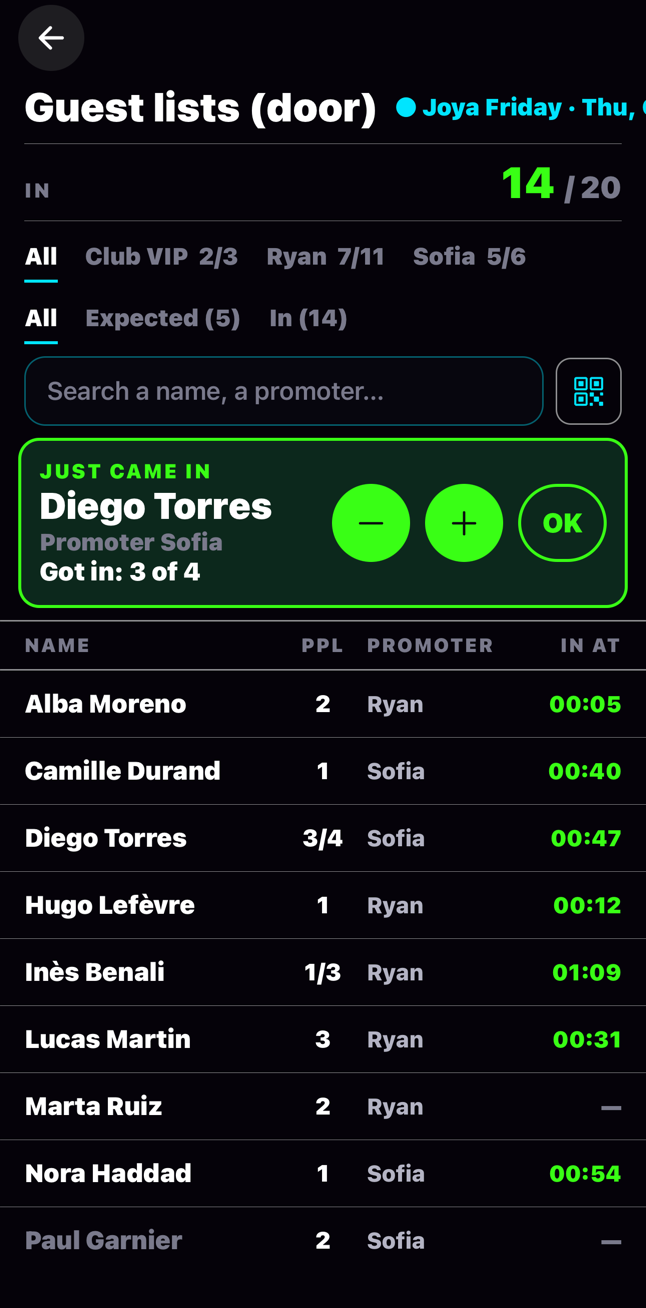
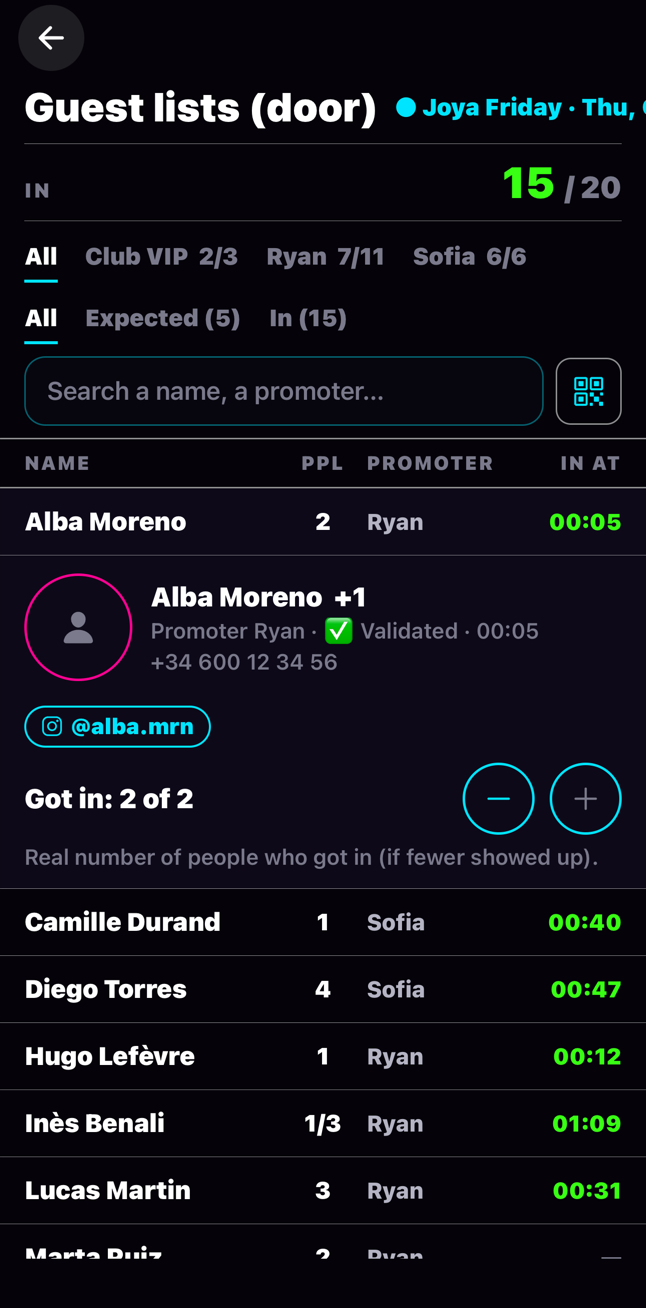
Your door staff see the whole list, clearly. They don't validate anything: the guest scans the entry QR and their line switches to "In" by itself.
- "Door view": every guest in alphabetical order, with their promoter.
- At the top: pick a promoter to see only their guests, or "Expected" / "In".
- Search finds a name in two letters.
- PPL: the number of people (the guest and their friends). "1/3": 1 person in out of 3 expected.
- When a guest comes in, their name shows up in green at the very top: "JUST CAME IN". If fewer people come in than expected, door staff correct it with − (or + if they made a mistake), then OK.
- Tap a line: photo, phone, social profiles. And "Let in manually" if there's a problem.
- After the time limit: "Late" in orange, the guest pays at the door.
"VALIDATED" on the guest's phone
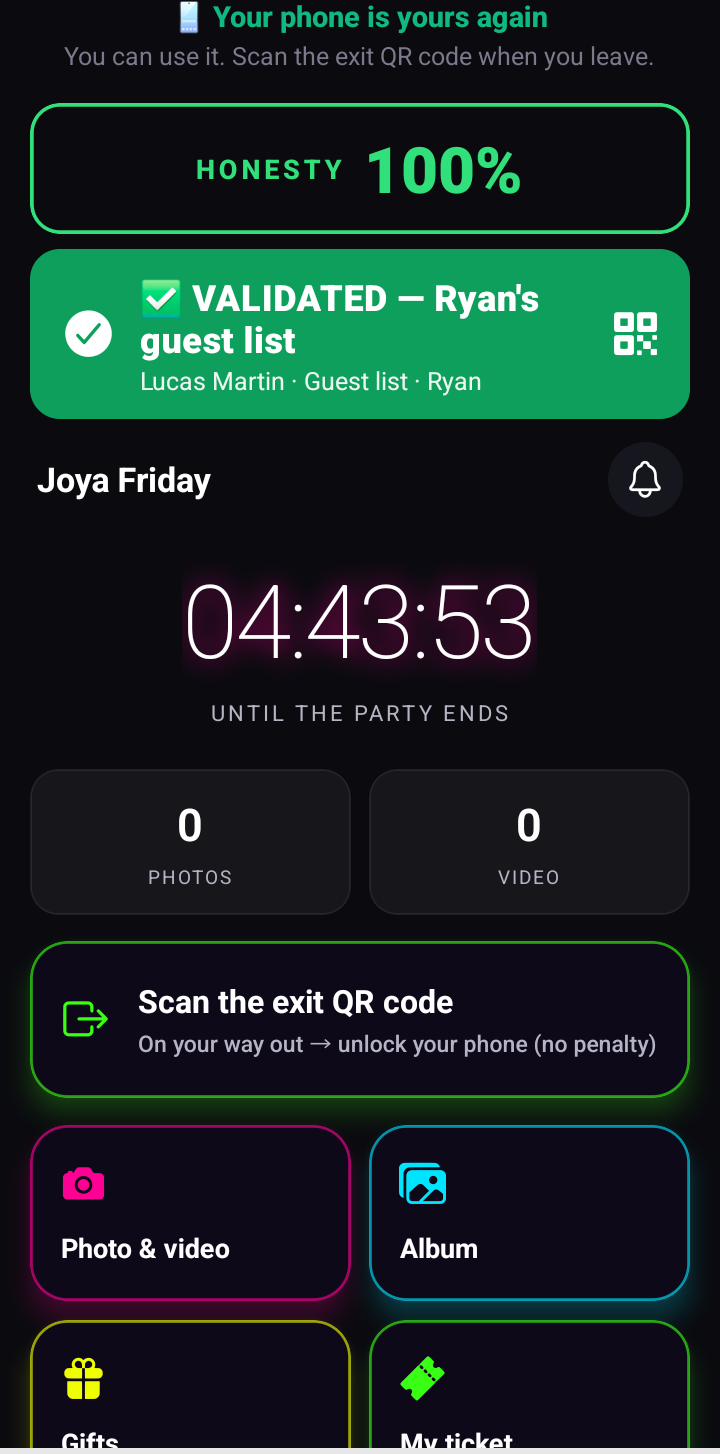
After the scan, the guest's phone shows in big letters which list they're on. Your door staff read it at a glance.
- Green: "VALIDATED — Ryan's guest list". They walk in.
- Orange: "PAY AT THE DOOR". They arrived after the time limit.
Sell tickets
Sell your spots right inside Joya. No fees for your customers, the money goes to your account.
- "Sell tickets": connect your payment account once.
- Create your prices and quantities.
- In the party, "Sell tickets in Joya": the "Buy my ticket" button shows up in Discover.
Get the word out
Two moves, both free. Nothing goes through email.
- In your party, "Send on WhatsApp": a ready-made message with your party's link. You choose who gets it.
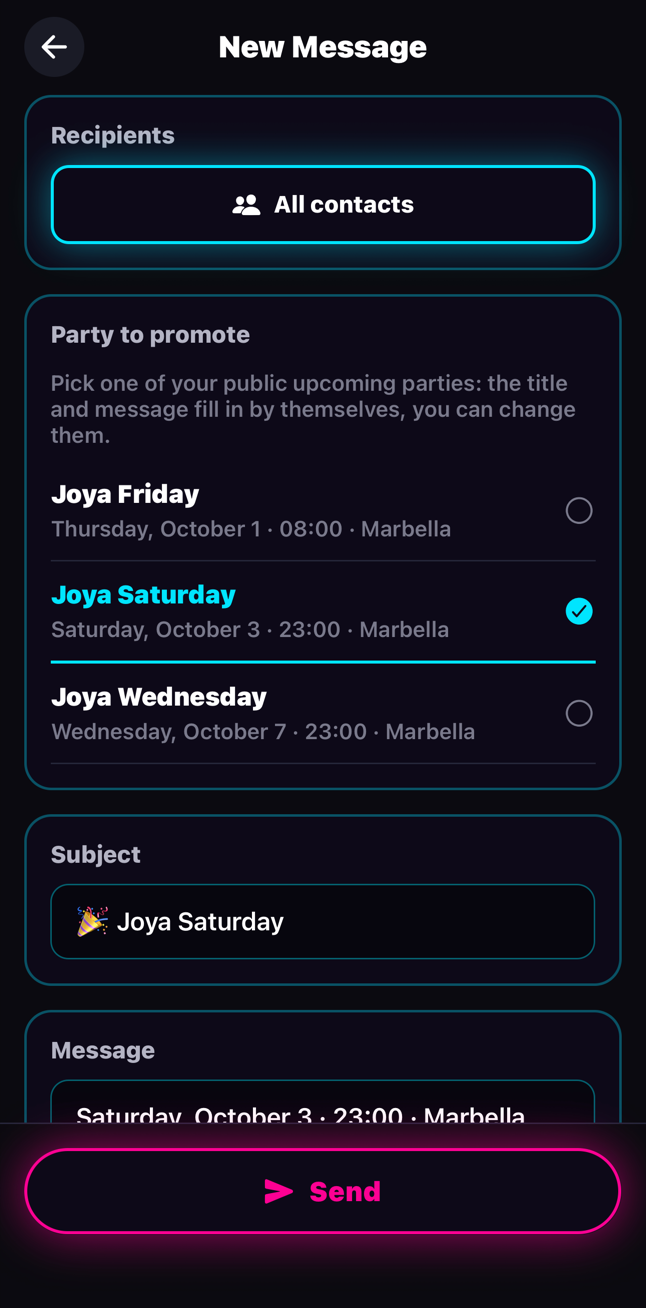
- "Re-engage my guests" → "Party to promote": pick the party, the title and message fill in by themselves.
- "Send": a notification goes to your guests who agreed to hear from you. They tap it and land on your party: they get their spot or ask for the guest list.
FAQ
- My promoter lost access?
- They tap "Team" on Joya's home screen: they're back on their post. New phone? They sign in again with the same account.
- A guest arrives after the time limit?
- They're marked "Late". They get in by paying at the door, at your ticket price.
- My guest's phone is dead?
- Door staff tap their line, then "Let in manually", with the reason. It's logged.
- I invited someone myself after the time limit?
- Your own guests are never late: they get in normally.
- Door staff got the number of people wrong?
- They tap − or + in the green banner, or in the guest's details. Never fewer than one person, never more than expected.
- How many people can come?
- Your plan sets the number of people. If your lists go over, Joya tells you and offers to add spots.